Weekly planner & time tracker for Android

Plan your week. Track your time.
See where it actually goes.

Most planners hand you a list and wish you luck. Week Planner starts from the hours you genuinely have — around work, school and everything else already fixed in your week — then tracks what you really spend, so you can tell the difference between the week you planned and the week you lived.

  • Free to use
  • Works fully offline
  • No account needed
  • English & Français
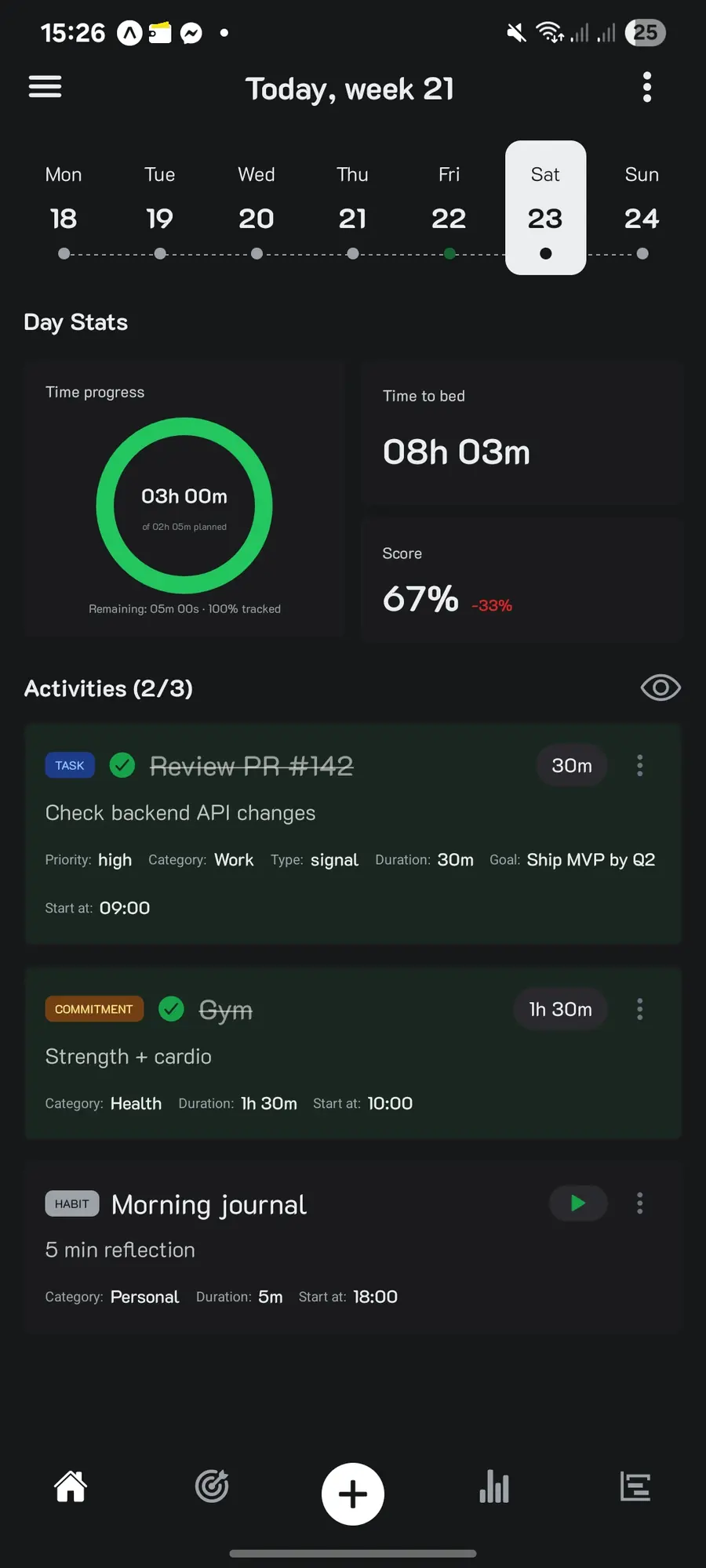
Week Planner home screen: today in week 21, day stats showing 3 hours tracked against 2h05m planned, and the day's task, commitment and habit.

Why another planner

A to-do list can't tell you what won't fit

Three things go wrong with the usual approach — and each one is a thing Week Planner was built to fix.

Lists ignore time

Twelve items look reasonable on a page. Spread across a week that already contains a job, a commute and dinner, half of them were never going to happen.

Instead: plan onto real days, with real durations, in the gaps you actually have.

Trackers only report the past

A time tracker tells you where last week went. Useful — but only if the numbers feed back into the plan for the week ahead.

Instead: planning and tracking sit in one app, on the same activities.

Plans skip the fixed blocks

Work, classes, the school run: you can't move them, so most apps pretend they aren't there and leave you to do the arithmetic.

Instead: commitments go in first, and everything else is planned around them.

How it works

Three steps, about two minutes to set up

The guided setup walks you through it the first time you open the app, and builds a real week for you as you go.

  1. Lock in what you can't move

    Add your commitments — work, school, the gym, a standing call. Mark them should do when you must be there for a set block, or need do when you mean to keep them but could reschedule. Your free time becomes visible immediately.

  2. Plan the rest of the week

    Drop tasks and habits onto the days that suit them, set a start time and a duration, and see the whole week at a glance before it begins. Repeating activities roll forward on their own, so next week is waiting for you.

  3. Track it, then look at the numbers

    Start a timer on whatever you're doing — planned or not — and let the dashboard compare the hours you intended with the hours you spent. That gap is the most useful number in the app.

Planning

Your week, mapped out before it starts

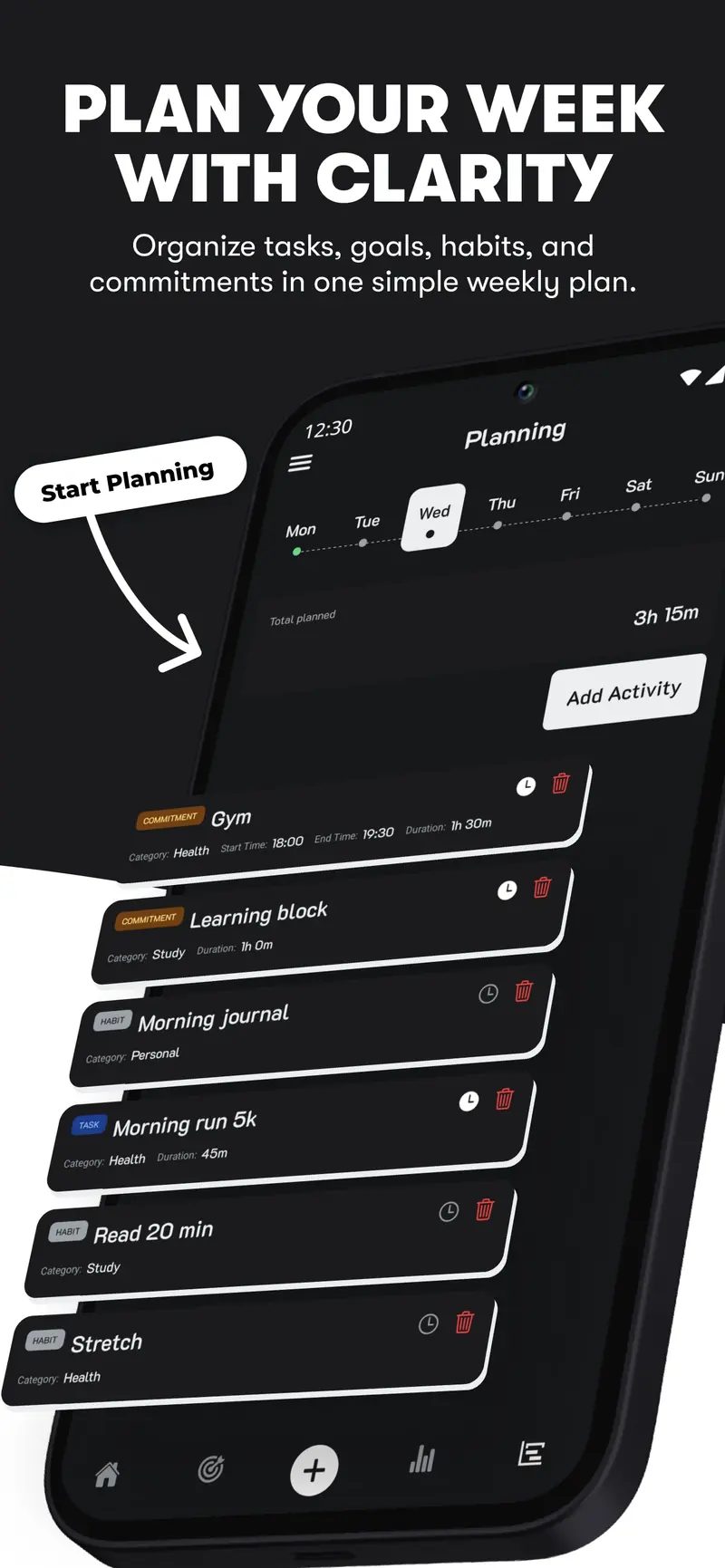
The planning board is where you decide which days your commitments, tasks and habits actually happen. Filter by category or by goal, add an activity to a day, adjust its time, and apply the change across the week in one go.

  • See the gaps. The day view splits planned from unplanned work and shows the free time between blocks, so you know exactly where an hour of Spanish could go.
  • Plan next week early. From the last day of your week you can get ahead and lay out the one coming.
  • Past days stay locked. History isn't rewritten — you plan today and forward.
  • Sleep-aware. Set your wake and bed times once; anything planned across them gets flagged.

What you get out of it: once the week is planned, the home screen simply shows what's next. No deciding on the fly, no morning spent choosing.

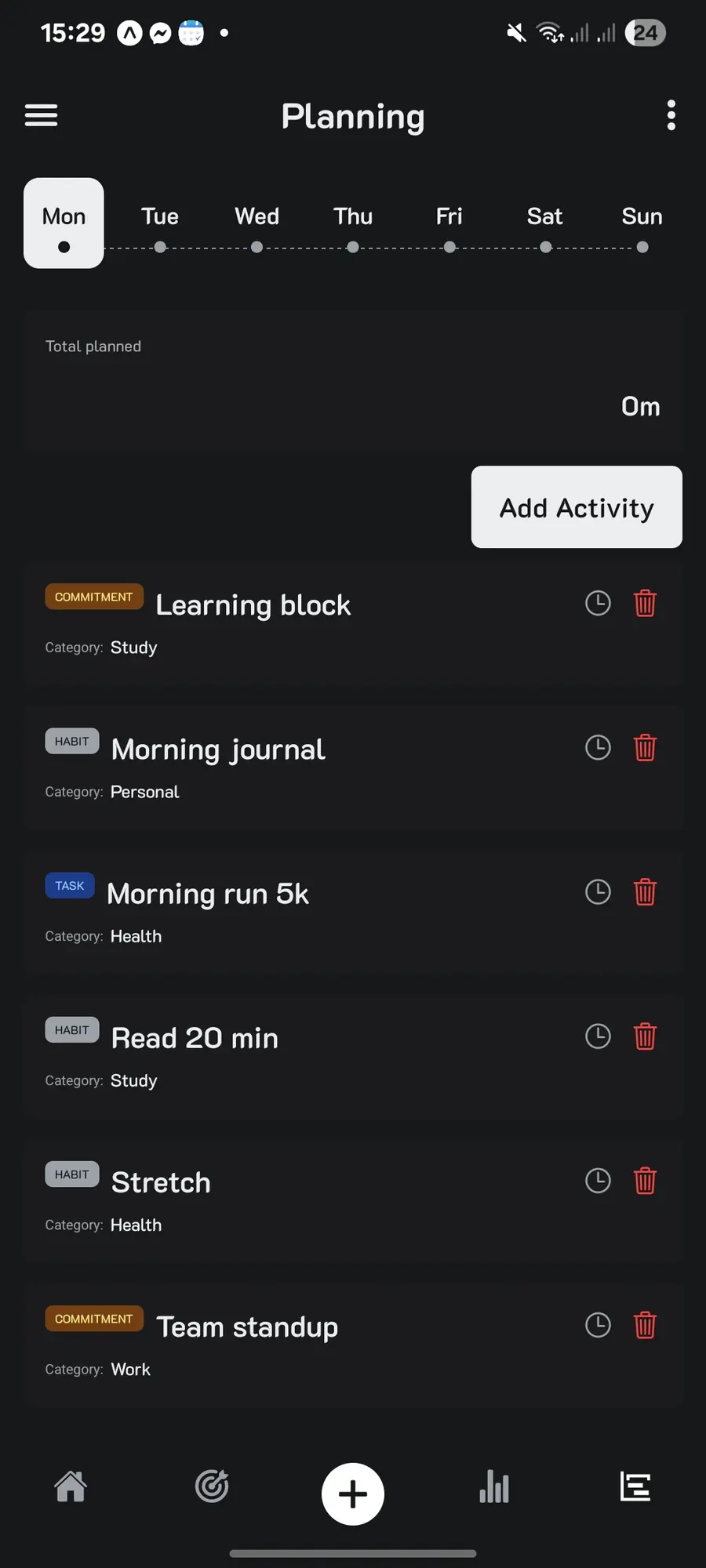
The Planning screen for a Monday, listing the commitments, habits and tasks assigned to that day with a time control on each.

Time tracking

Two timers, so no hour goes unaccounted for

Planning tells you the intention. Timers tell you the truth, and Week Planner gives you one for each kind of work.

  • Activity timers run on something you planned. Start it, work, complete it — the session is saved against that task, habit or commitment.
  • Category timers catch everything you never planned: the unexpected call, the errand, the two hours that vanished. Pick a category and start the clock.
  • One thing at a time. If a second timer starts, the app asks you to choose your focus, so your numbers stay honest.
  • It keeps running. An ongoing notification tracks the session while you're in other apps or the screen is off.
  • Fix it after the fact. Forgot to stop the timer? Set the worked duration by hand.

What you get out of it: a record of your real effort rather than your intentions — which is what makes the next week's plan realistic.

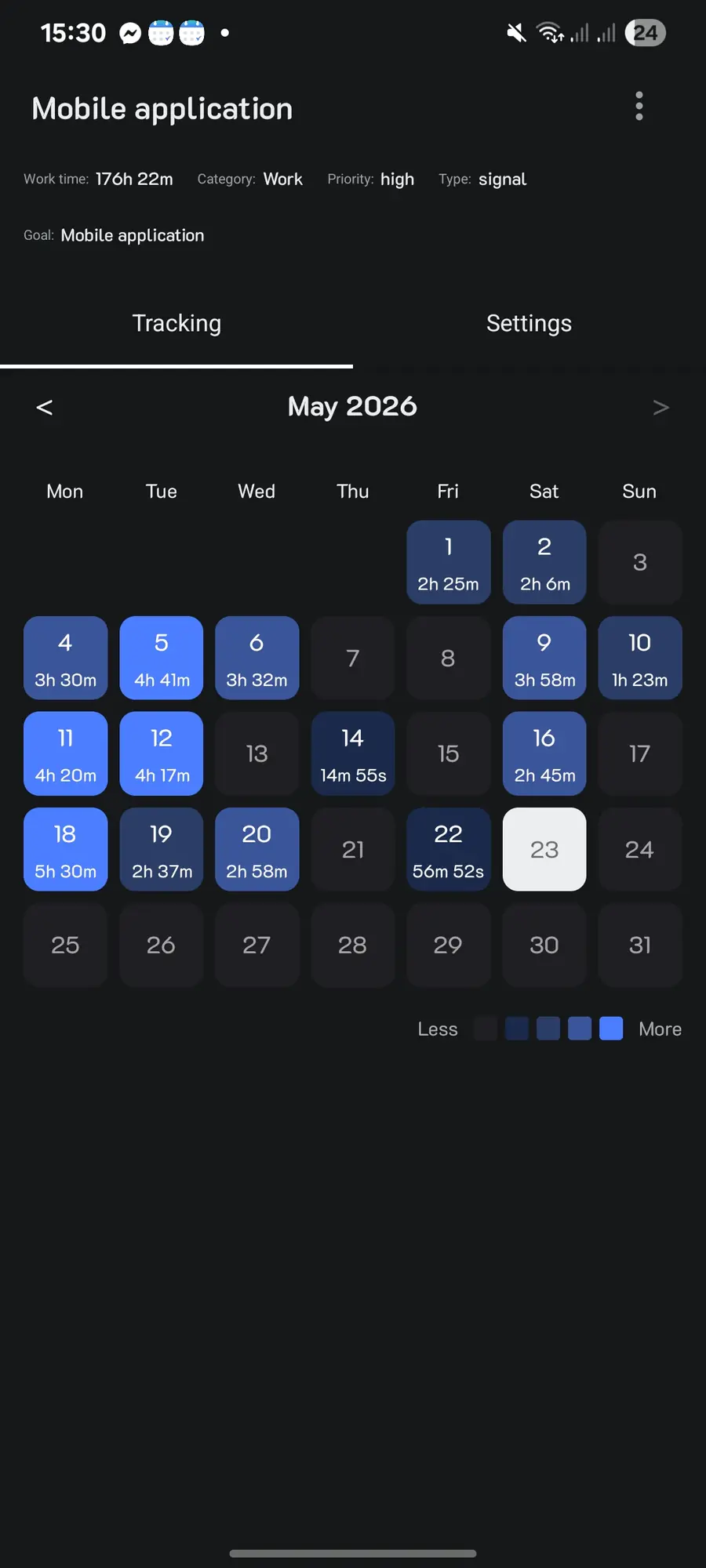
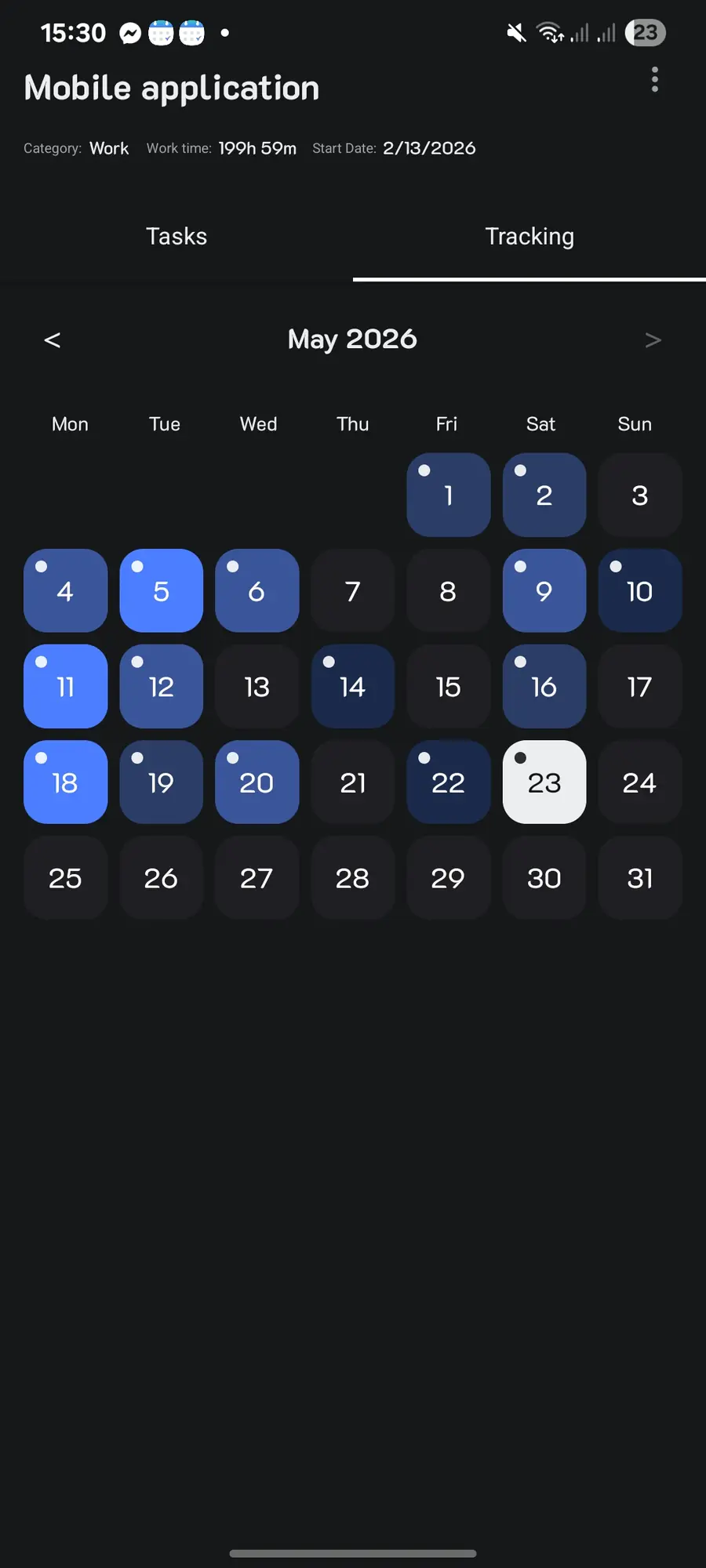
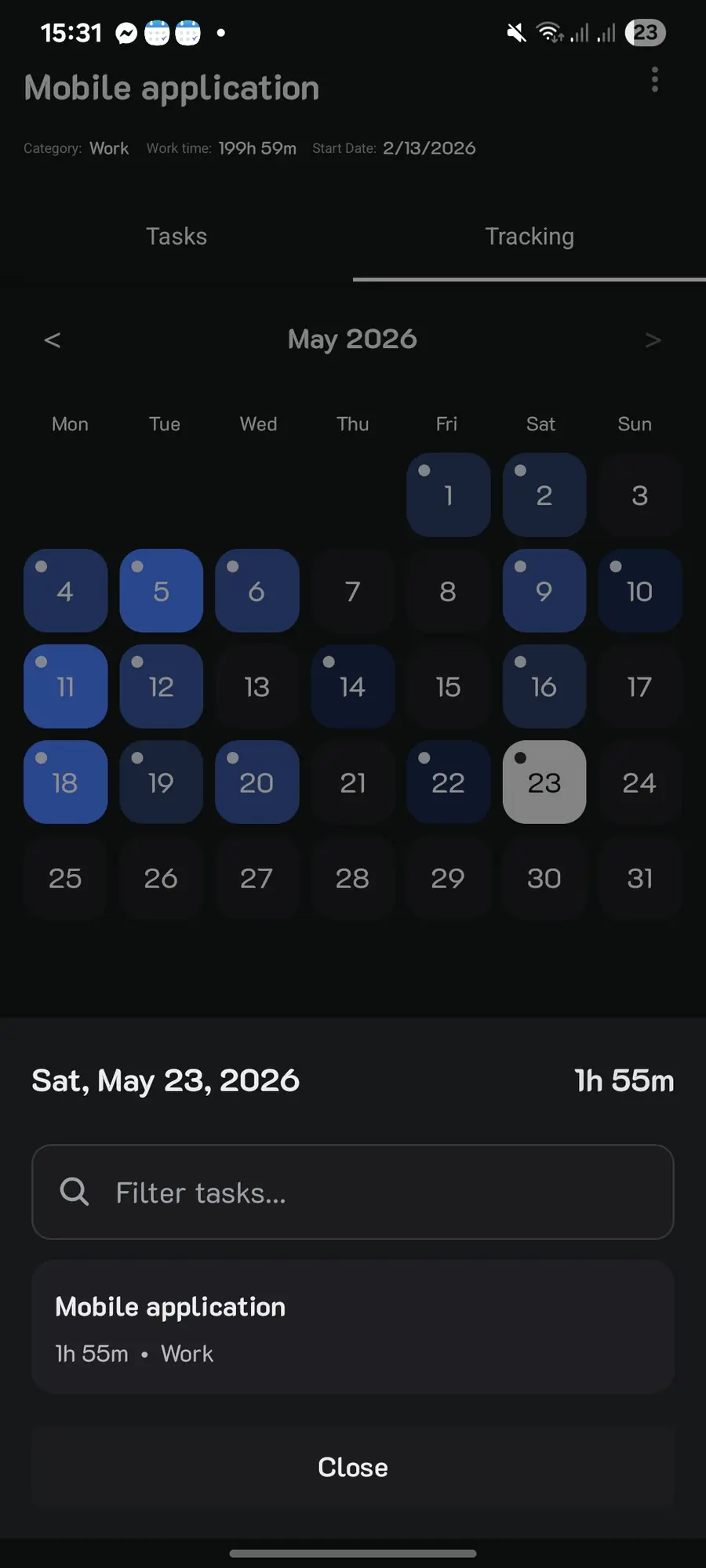
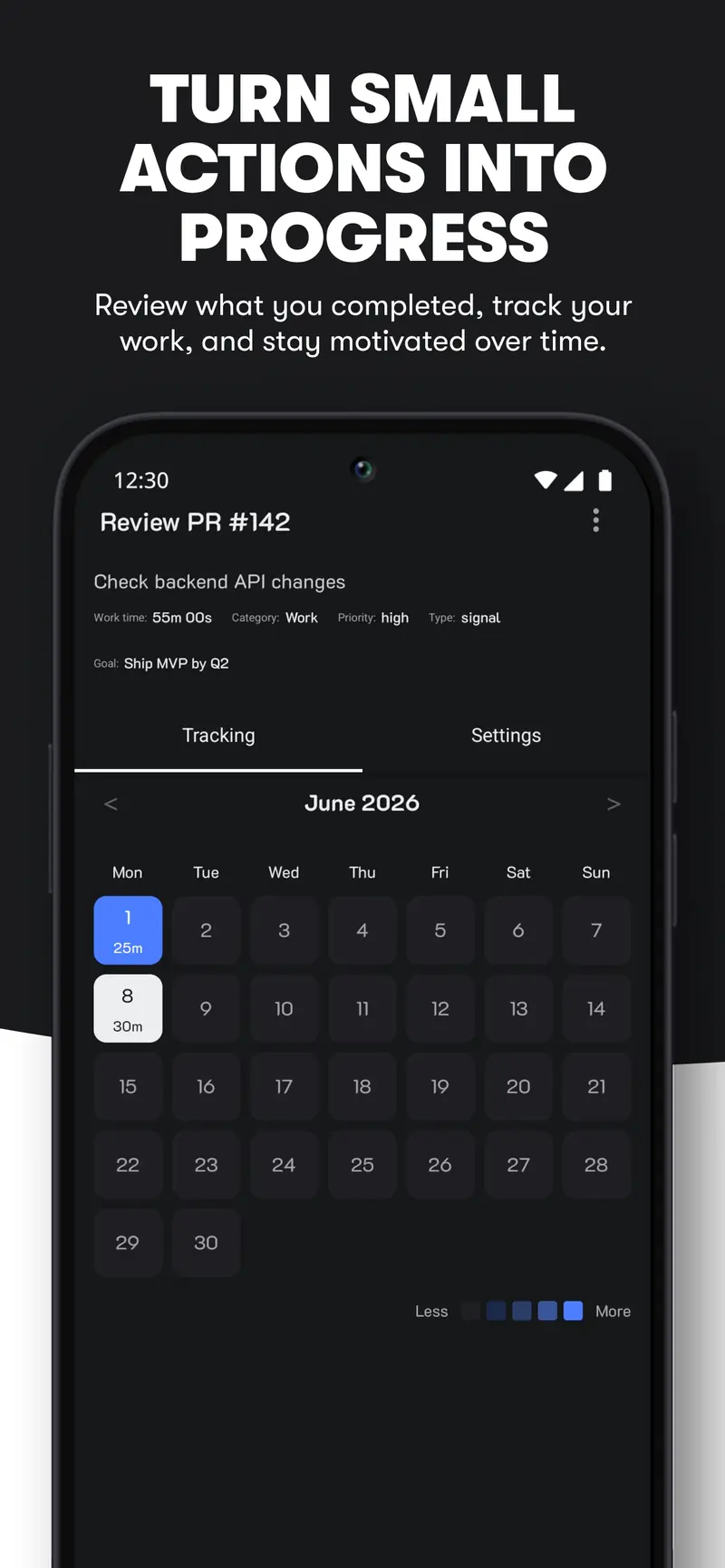
One activity's tracking screen, showing 176 hours of recorded work and a calendar of how long each day's session lasted.

Dashboard & goals

The week you planned, next to the week you had

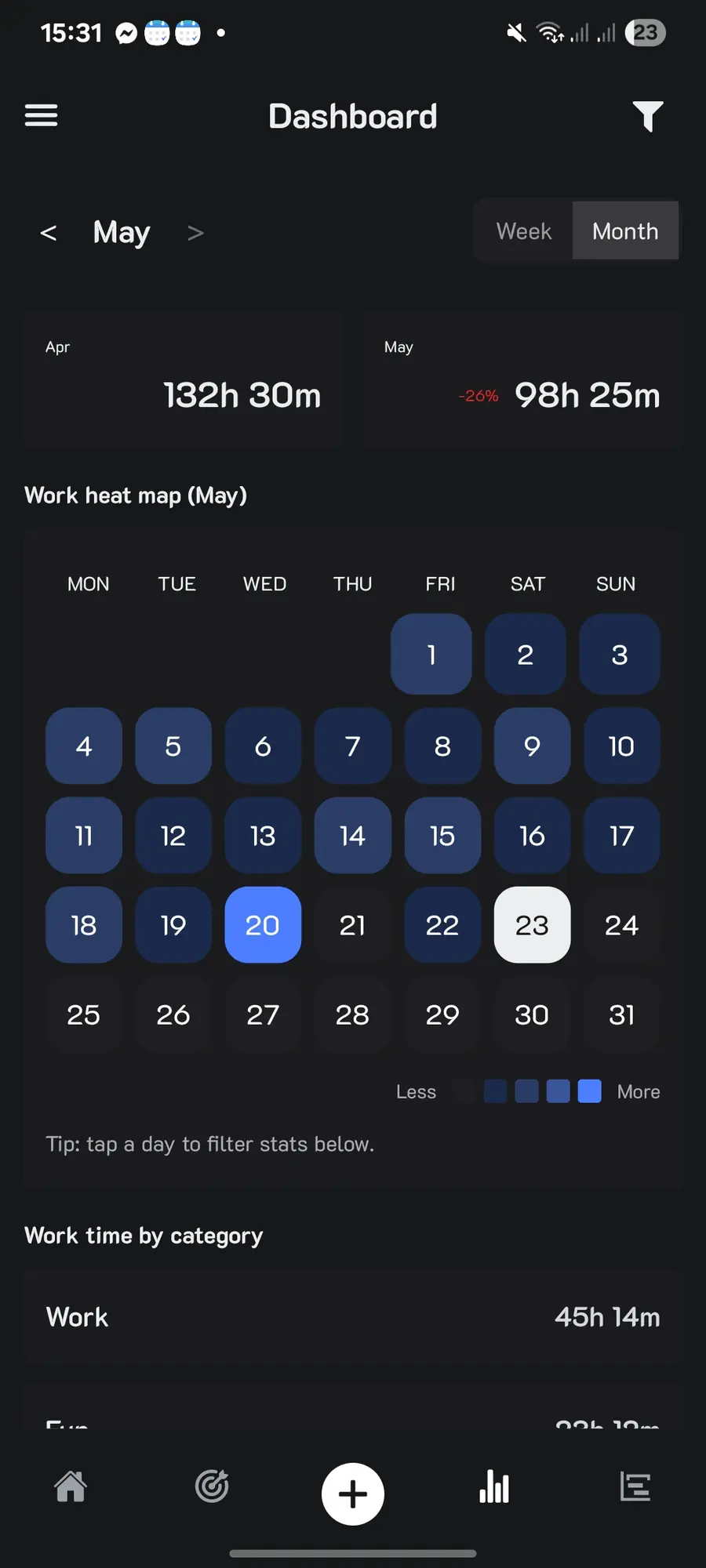
The dashboard compares tracked time against planned time — by category, by week, day by day. Filter down to a single category to see exactly which activities ate the hours.

  • Plan versus actual. The one view that shows whether you're keeping up with what you set out to do, not just what you hoped to do.
  • Goals tie it together. A goal groups every task pointing at the same outcome — "learn Spanish", "ship the side project" — so progress reads as one story instead of scattered checkboxes.
  • Categories across everything. Group work, study, health and home, and see the split of your week at a glance.
  • Completion stats per day and week. Streaks you can see, and the honest days too.

What you get out of it: evidence. After a few days you stop guessing where your time goes and start deciding where it goes.

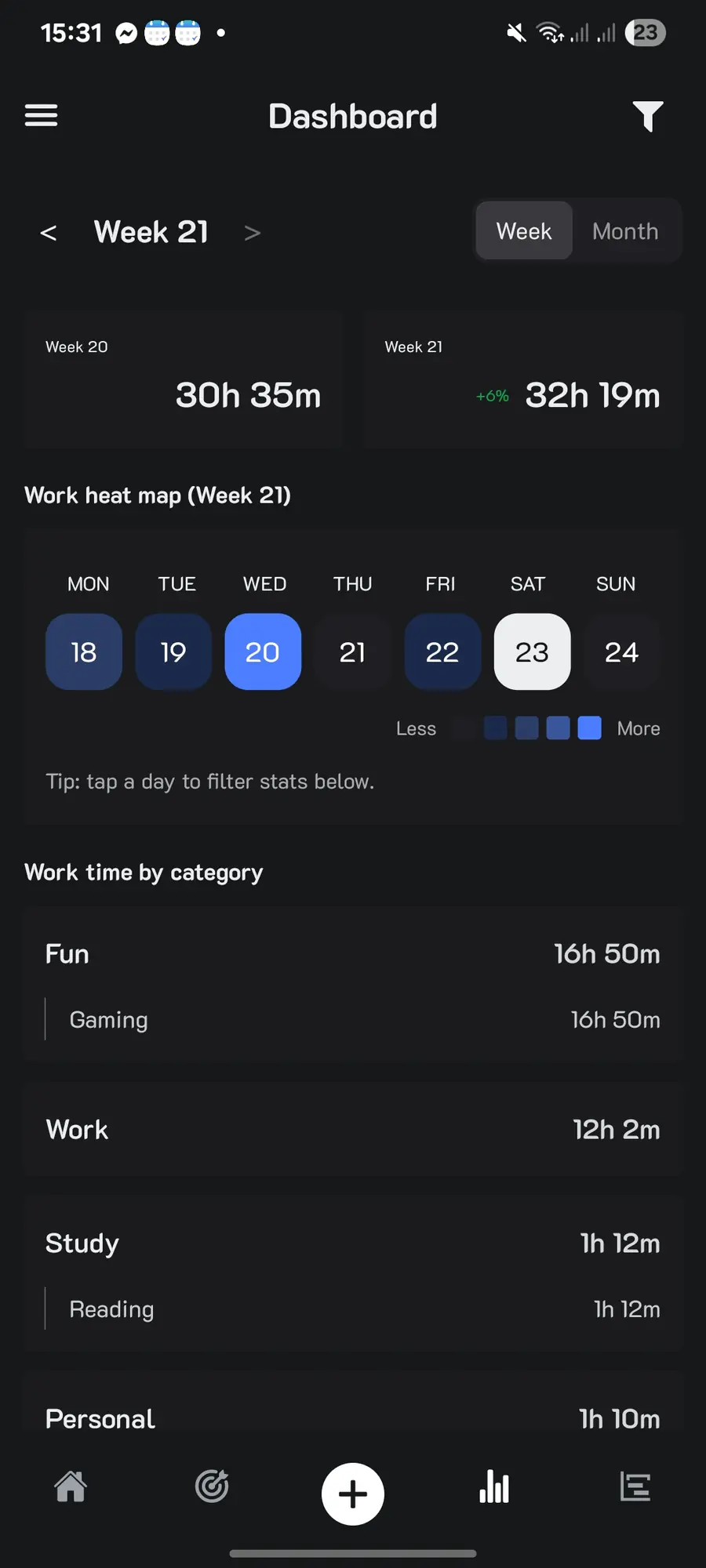
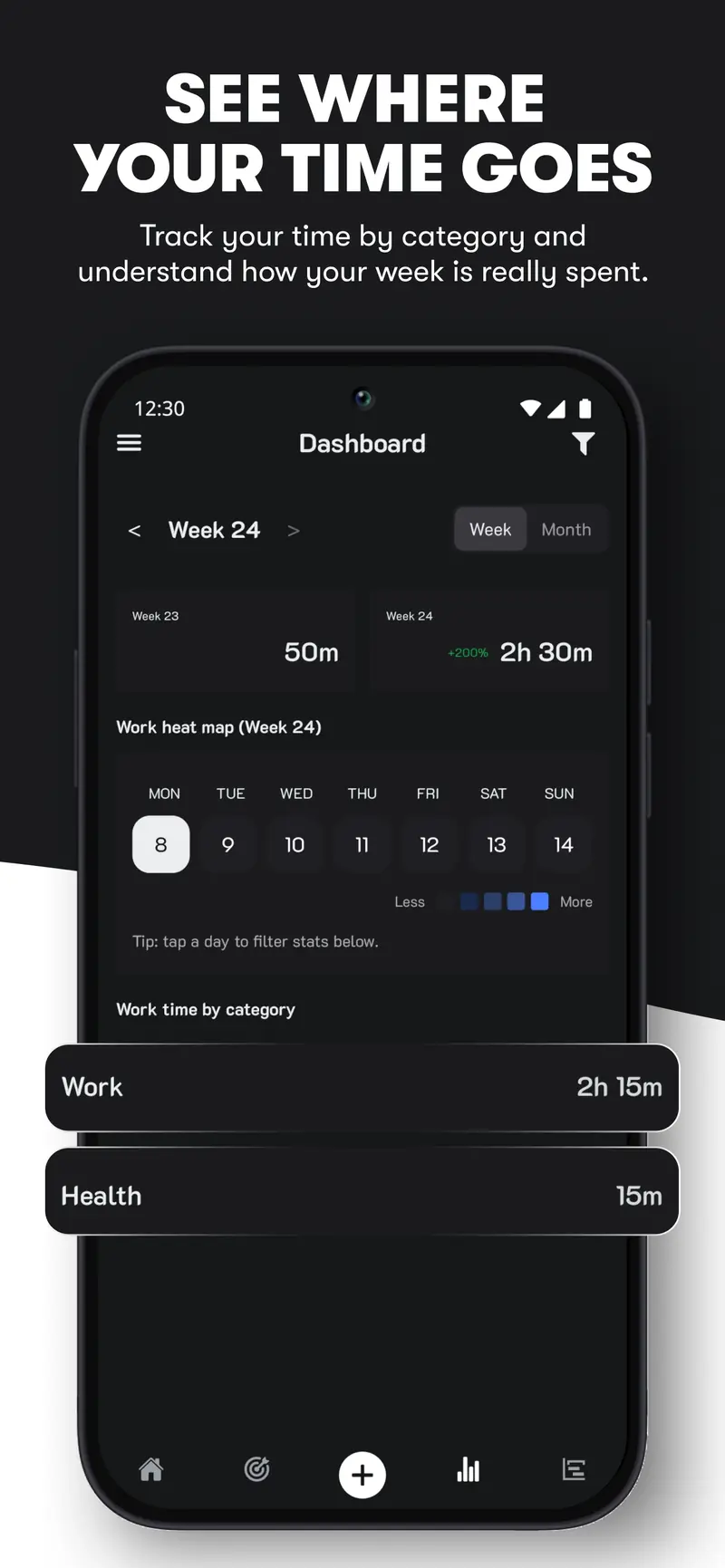
The Dashboard compared by month: April 132h30m against May 98h25m, a work heat map, and tracked time broken down by category.

Everything in the app

Built for a real week, not an ideal one

Tasks, habits and commitments are handled as one family of activities, so every feature below works across all three.

Commitments first

Fixed blocks like work, school or the gym go in once and repeat, so the app always knows where your free time really is.

Tasks with a slot

One-off things to finish, planned onto a day and a time rather than left floating at the bottom of a list.

Habits that repeat

Pick the days, pick the length, and watch a fifteen-minute habit you keep beat the big plan you never start.

Goals

Group the tasks working toward the same outcome and see how close you are to something that matters.

Free-time gaps

The day view shows the space between your blocks, so you can place something useful in it instead of losing it.

Reminders that arrive early

A heads-up five or ten minutes before a planned activity, then again as it starts. Or just the one at the start — your call.

Categories

Colour-code every activity and track whole areas of your life, including the unplanned time.

Offline and private

Everything is stored on your phone. No account, no sync, nothing uploaded — and a full backup you can export and import.

Set up your way

Dark or light, 12 or 24-hour time, weeks starting Monday or Sunday, completion sounds and haptics on or off.

Who it's for

If your week has fixed edges, this is for you

Students

Lectures and labs are fixed; revision isn't. Put the timetable in as commitments, then plan study sessions into the gaps and see how many hours each subject really got.

Freelancers & solo founders

Track billable work by category, watch admin quietly expand, and find out which projects are worth what you charge for them.

Shift workers

Shifts change every week. Plan around the ones you have rather than against a template that assumes nine to five.

Parents & busy households

School runs, appointments and dinner take the hours they take. Plan what's left honestly instead of over-promising your evenings.

Anyone building a habit

Reading, training, a language. Put it on specific days, keep the timer honest, and let the streak do the persuading.

Anyone asking "where did the week go?"

Two timers and a dashboard answer it in about three days — usually with one surprise you'd rather have known about sooner.

A look inside

Screens from the app

Light and dark, on a normal week.

On Google Play

The store listing

The images from the Play Store, if you would rather skim those first.

  • Store graphic: “Take control of your week” — plan tasks, goals, habits and routines in one system.
  • Store graphic: “Plan your week with clarity” — the Planning screen with a Start Planning prompt.
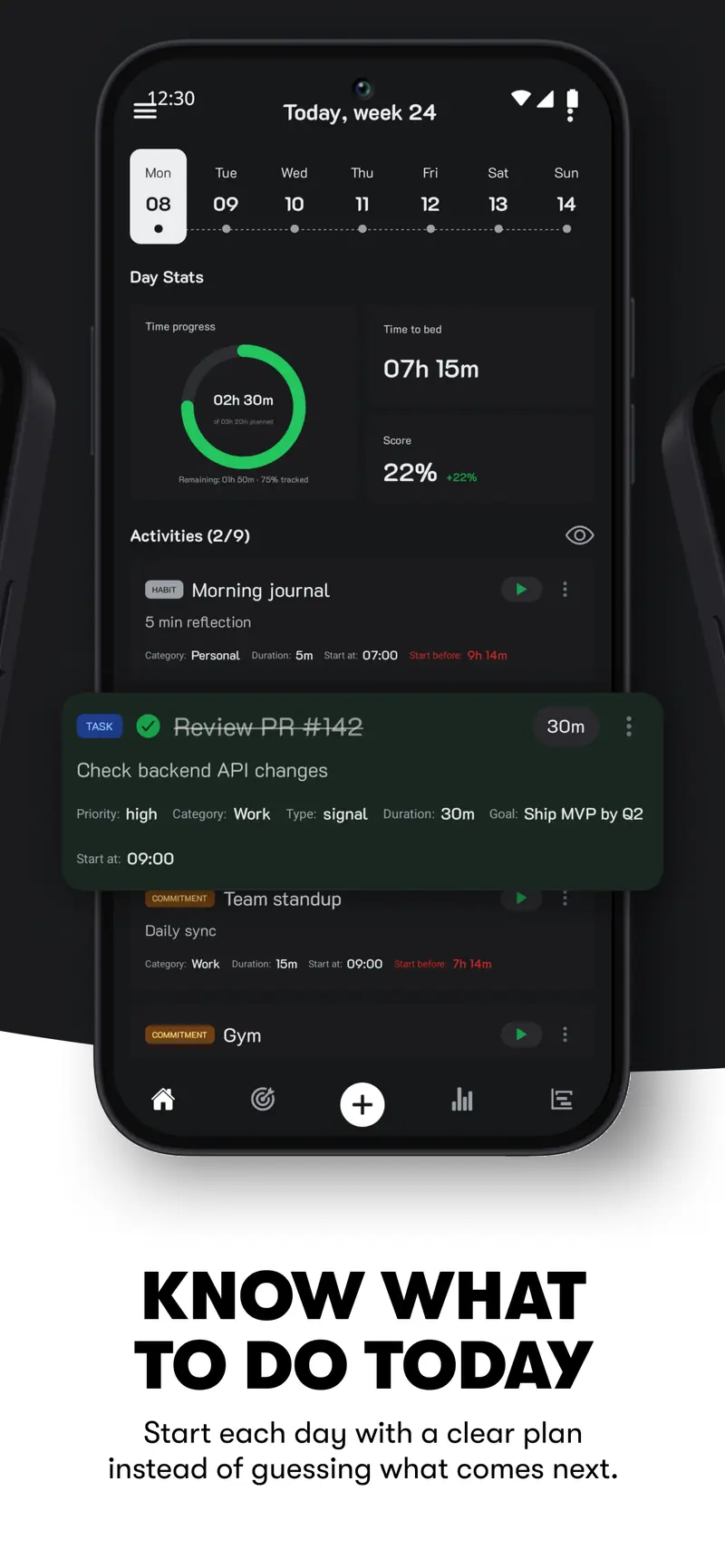
  • Store graphic: “Know what to do today” — the home screen with the day's activities.
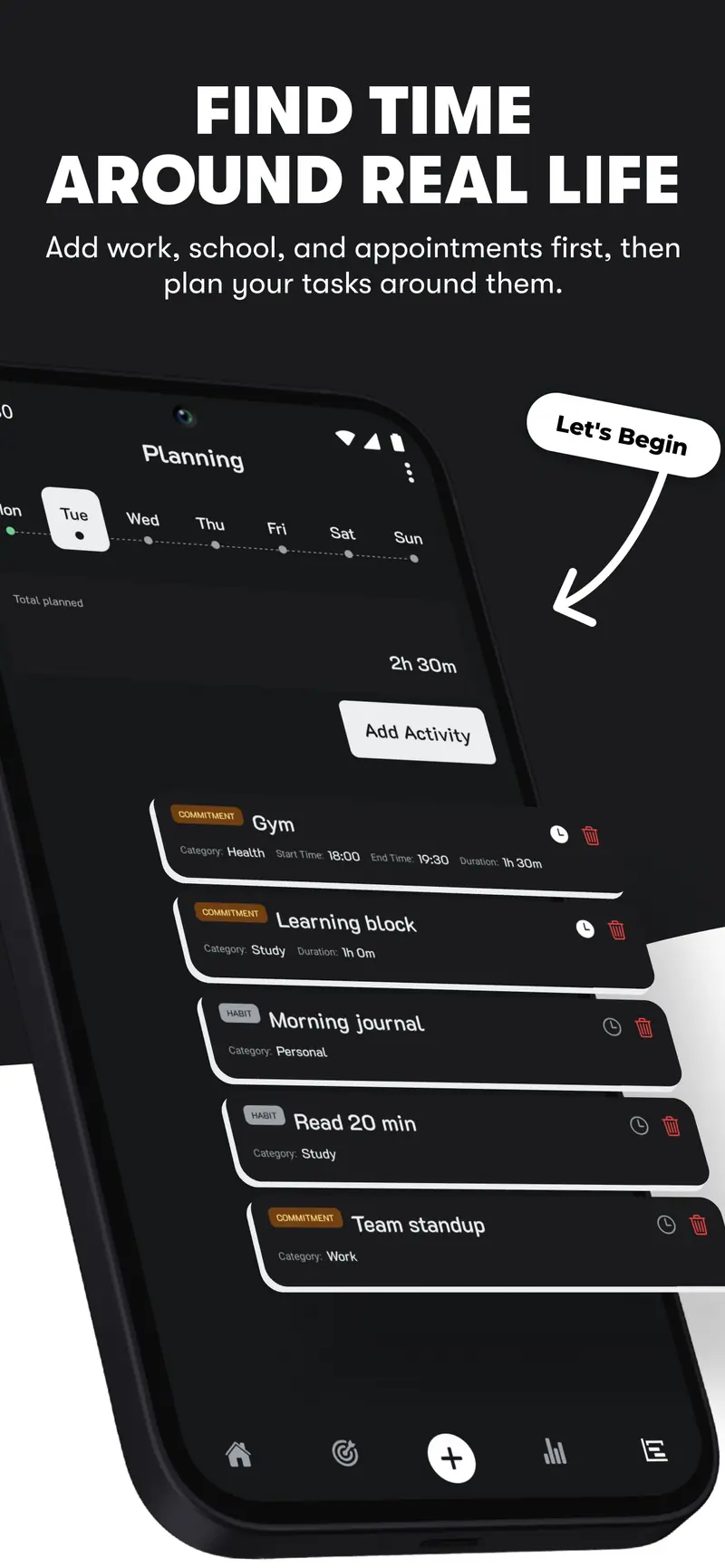
  • Store graphic: “Find time around real life” — add work and school first, then plan around them.
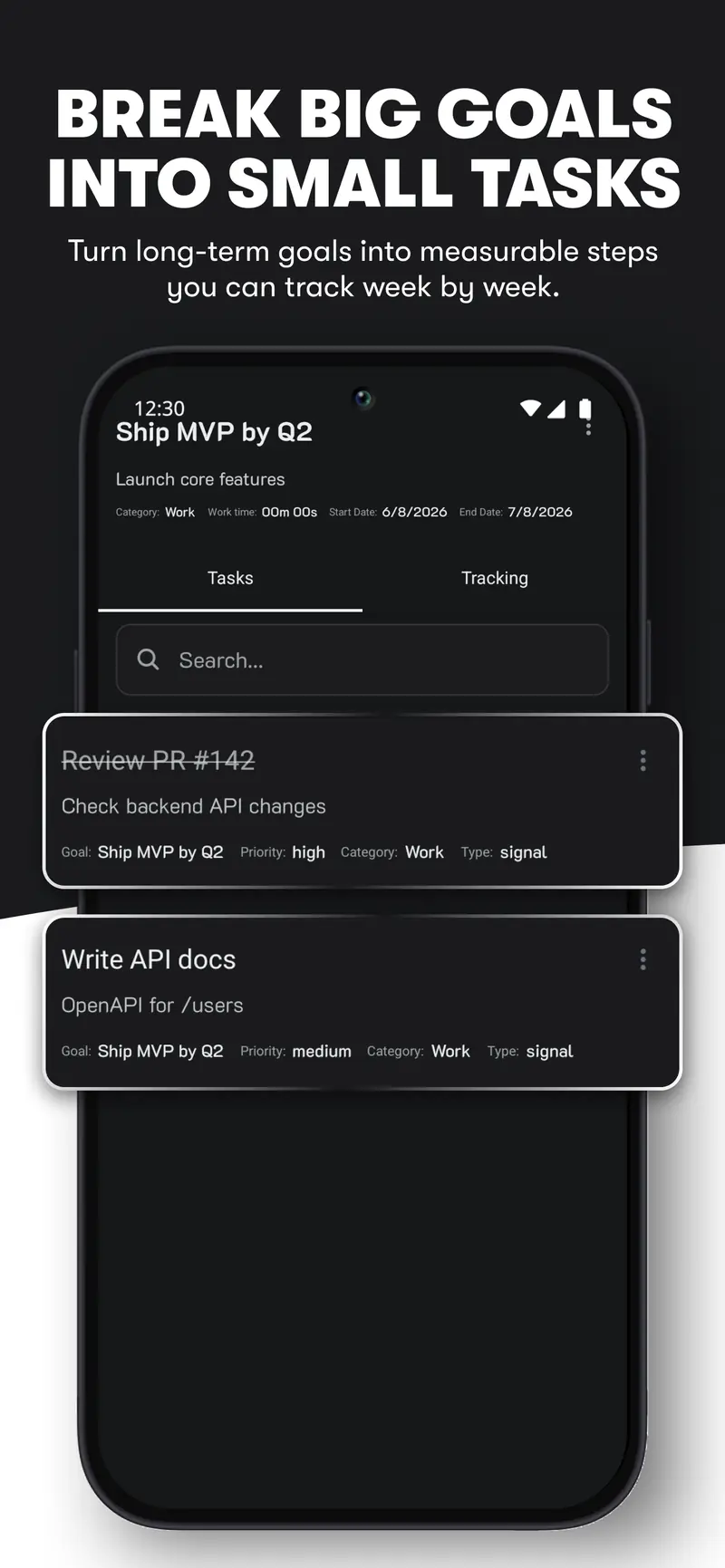
  • Store graphic: “Break big goals into small tasks” — a goal broken into its task list.
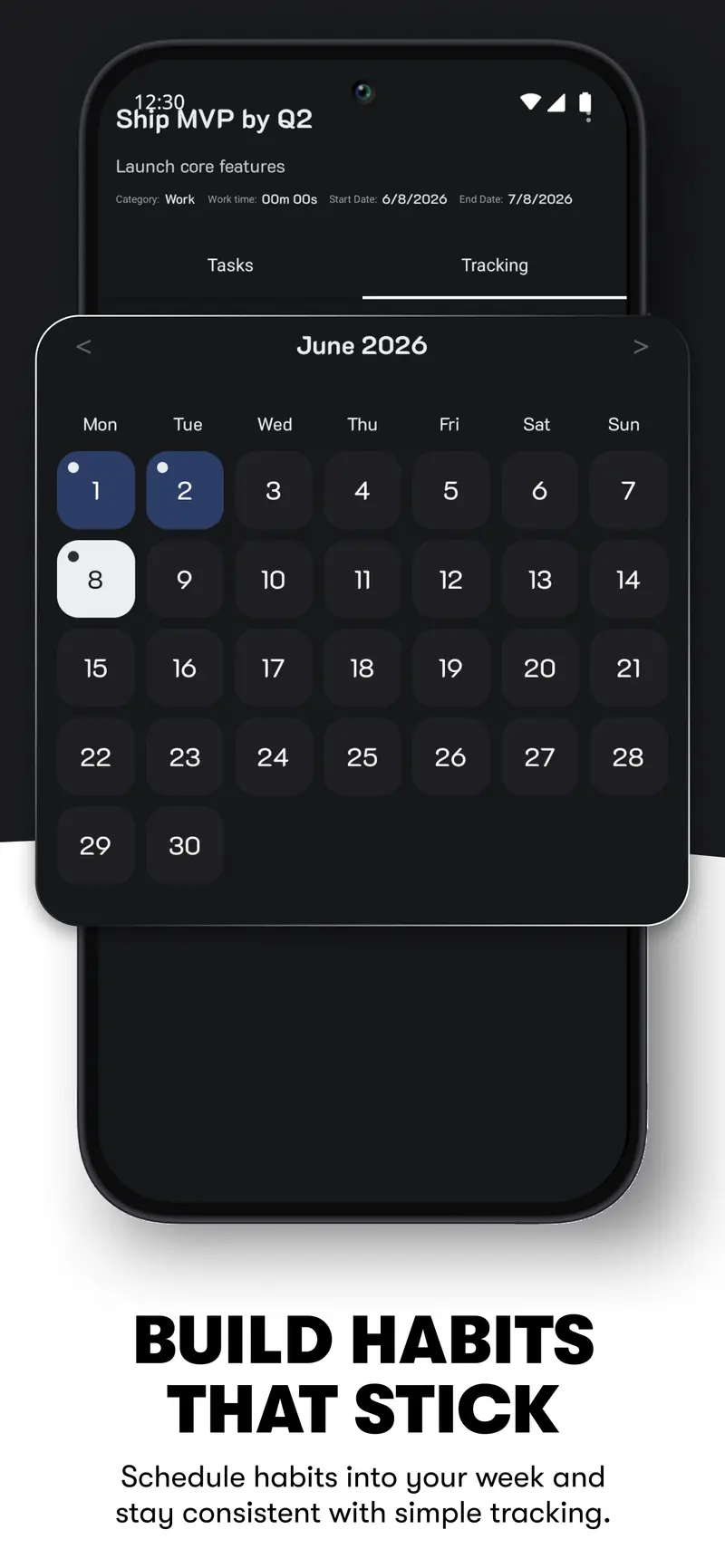
  • Store graphic: “Build habits that stick” — a habit's tracking calendar.
  • Store graphic: “See where your time goes” — the weekly dashboard by category.
  • Store graphic: “Turn small actions into progress” — a task's tracked sessions.

FAQ

Questions people ask first

Is Week Planner free?

Yes. Every planning and tracking feature is free to use. The app is supported by occasional ads, deliberately capped at a small number per day so they stay out of your way.

Do I need an account?

No sign-up, no email, no password. Install it, choose your language, and you're planning within a couple of minutes.

Does it work offline?

Completely. Your plan, your timers and your history live in a database on your phone, so a flight or a dead signal changes nothing.

Where does my data live?

On your device, and nowhere else — nothing you plan or track is uploaded to a server. You can export a full backup file whenever you like and import it on a new phone.

What's the difference between a task, a habit and a commitment?

A task is a one-off thing to finish, like writing a report. A habit is something you repeat, like reading twenty minutes a day. A commitment is a fixed block you build the rest of your week around, like work, school or the gym.

Can I track time I never planned?

Yes — that's what category timers are for. Start one for anything unplanned and those hours show up in the dashboard next to your planned work, so the picture stays complete.

Does it replace my calendar?

It works alongside it. A calendar holds appointments at fixed times. Week Planner decides how the rest of your week is spent and records how long each thing actually took.

Which languages are supported?

English and French, switchable at any time from Settings.

Is there an iPhone version?

Week Planner is on Android today. Follow @ousta_solutions for news about other platforms.
Plan the week you actually have

Free, offline, no account. Set it up in about two minutes and by the weekend you'll know where your hours went.